

Quick answer
How do you set up Local Services Ads for multiple locations?
Use a Local Services Ads manager account when you need to create many provider accounts. Download Google's current CSV template, keep one provider or location on each row, use the required category, service, and geotarget IDs, then upload up to 100 rows. Google creates an account only for a complete, validated row. Account creation does not complete screening, Business Profile matching, or the remaining setup for that location.
- Manager account requiredGoogle makes bulk account creation available from a Local Services Ads manager account.
- Up to 100 providersAdd one provider or location per CSV row. Google validates each row before it creates an account.
- Creation comes firstA successful upload creates provider accounts. Each account still needs its applicable profile and verification work.
Choose single or bulk account creation
Google provides two account-creation paths inside a Local Services Ads manager account: single account creation and bulk account creation. Use the single path for one provider. Use the bulk path when you have a location list that can be prepared and checked as structured data.
Teams still use the older term MCC for a manager account, so searches for LSA MCC bulk creation usually refer to this same workflow. Google's current help page calls it a Local Services Ads manager account.
Single account creation
Create one provider, complete its details, then move through that account's onboarding steps.
Bulk account creation
Upload one provider per row and let Google validate up to 100 rows in one file.
Prepare the data before you download the template
Start from Google's current bulk account creation instructions. The page links the live CSV template, field guide, Business Category and Service Types file, and Geotargets resource used by the upload.
An archived category file can show you the expected ID format, but it can age out. For example, a Q3 2024 export should not control a July 2026 upload. Download the current list while preparing the file.
- Confirm that you can access the Local Services Ads manager account and its Managed accounts area.
- Decide whether each row will use an existing linked Google Ads account ID or let Google create a new customer ID.
- Collect the business name, business-owned phone, website, primary contact, founding year, address, languages, and hours for every provider.
- Download the current category and service-type IDs instead of relying on names typed from memory.
- Get the current geotarget Criteria IDs for service areas when you do not want the regional default.
- Assign an owner for the screening and profile work that follows account creation.
Bulk-create Local Services Ads accounts step by step
Google validates each row for completion and accepted values. A complete, validated row becomes an individual Local Services Ads account. A failed row stays in the error workflow.
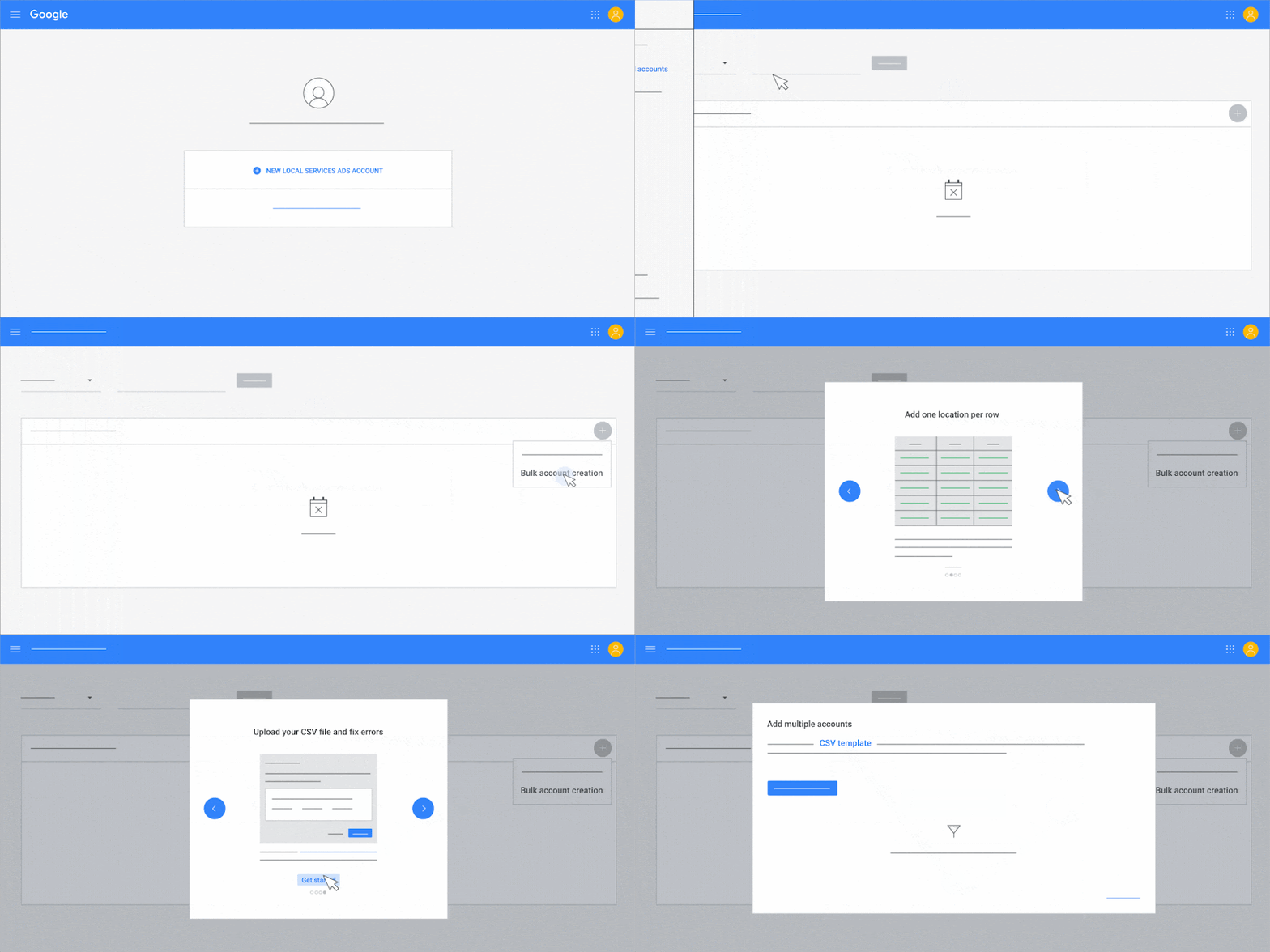
The animated walkthrough above comes from Google's Local Services bulk creation help page. The interface can change, but the current written sequence remains Managed accounts, account creation, Bulk account creation, template download, upload, and results review.
- Sign in to Local Services Ads and select Managed accounts from the left menu.
- Select the account creation button, then choose Bulk account creation.
- Review the four-step visual guide if Google shows it, then open Add multiple accounts.
- Download the CSV template from that page. Keep the template structure and example formatting intact.
- Enter one provider or location per row. Google accepts up to 100 providers in one upload.
- Save the completed CSV, select Upload CSV file, choose the file, and submit it.
- Open Upload results to see how many rows succeeded and how many need correction.
Local Services Ads bulk CSV fields and formats
The current template contains a description row, a header row, and mock provider data. Replace the mock provider values without rewriting the column names or converting ID fields to plain-English labels.
Required and optional labels can change between template versions. The supplied current template contains 21 data columns and adds an optional EU political-advertising field that does not appear in the linked nine-page field guide. Use the template downloaded from your account as the final authority for column presence and required status.
| CSV field | Template status | Format or operating note |
|---|---|---|
| Account ID | Optional | Existing Google Ads ID with Edit access and direct manager link; blank allows a new ID. |
| Business Name | Required | The provider name shown across Local Services. |
| Business Phone | Required | Business-owned number; E.164 is encouraged but not mandatory in the guide. |
| Business Website | Required in supplied template | Use a valid business URL. The older field guide describes blank as no listed website. |
| Invite user to account | Optional | Valid email address for a user who will accept the invitation. |
| Primary Contact First Name | Required | Business owner or primary contact first name. |
| Primary Contact Last Name | Required | Business owner or primary contact last name. |
| Business Categories | Required | Category IDs, with multiple values separated by semicolons. |
| Founding Year | Required | Four-digit business founding year. |
| Languages Spoken | Required | Lowercase language codes; separate multiple values with semicolons. |
| Street Address | Required | Provider's business street address. |
| City | Required | City for the business address. |
| Region | Required | State, province, territory, or other applicable region name. |
| Postal Code | Optional | Valid postal code for the business address. |
| Country | Required | Uppercase two-letter ISO country code, such as US. |
| Physical Location | Required | TRUE or FALSE. |
| Service Areas | Optional | Geotarget Criteria IDs; semicolon-separated, with a maximum of 20 in the guide. |
| Service Types | Required | CategoryID:ServiceTypeID pairs separated by semicolons. |
| Business Hours | Required | 24-hour DAY:HHMM-HHMM entries separated by semicolons. |
| Marketing Opt In | Required in supplied template | TRUE or FALSE. |
| EU Campaign Contains Political Advertising | Optional | TRUE or FALSE when the field is present in the downloaded template. |
Format categories, service areas, and hours exactly
Many upload failures come from using readable labels where Google expects machine IDs. Keep the category, service type, country, language, physical-location, service-area, and business-hours formats exact.
| Input | Accepted pattern | Avoid |
|---|---|---|
| Business Categories | plumber or plumber;electrician | Plumber, Electrician |
| Service Types | plumber:unclog_drain;plumber:repair_shower | Unclog drain, Repair shower |
| Service Areas | 1014044;1002451 | Mountain View;San Jose |
| Country | US | United States |
| Physical Location | TRUE or FALSE | Yes or No |
| Business Hours | MONDAY:0800-1700;TUESDAY:0800-1700 | Monday 8am-5pm |
| Multiple values | Semicolons | Commas |
Fix Local Services Ads bulk upload errors
Google rejects a file before row processing when it is corrupted, unsupported, empty, or contains more than 100 provider rows. Row-level issues appear after validation in the upload summary and error report.
- Open the upload summary and select See results.
- Download the error report from the failed upload's Actions column.
- Check column V to identify the rows that failed account creation.
- Read column W for Google's detailed error explanation.
- Correct the failed rows in the error-report CSV and upload that corrected file again.
- Keep the successful provider accounts out of the retry file unless Google instructs otherwise.
Finish onboarding and verification for each location
Bulk creation gives you provider accounts. It does not complete the full Local Services onboarding process for every row. Open each new account and work through the requirements shown in its dashboard.
Requirements vary by category and location. Google may require Business Profile ownership, business registration, a representative check, insurance, licenses, background checks, or other screening steps. Do not promise one universal checklist across all locations.
Google's current screening and verification guidance says the process varies by business category and location. It also says matching Business Profiles must be claimed or managed by the person completing the Local Services checks before an ad can appear.
Account created
The row passed validation and Google created the provider account under the manager.
Profile connected
Where Google finds a matching Business Profile, the person completing checks must own or manage it.
Verification complete
The provider finishes the checks shown for its category and location.
Ready to serve
Billing, services, areas, hours, budget, and other launch settings are complete and the account is eligible.
Keep a register for every provider account
A multi-location launch becomes difficult when the upload file is the only source of ownership. Keep a location register that connects each provider account to the people, records, routing, and market decisions behind it.
For an agency, keep each advertiser's access and business data separate. For a franchise, document which team controls the local profile, phone intake, service area, budget, and verification renewals.
| Track per provider | Why it matters | Review owner |
|---|---|---|
| LSA account ID and manager link | Prevents edits in the wrong provider account. | Account administrator |
| Business Profile and authorized managers | Supports profile matching and access requests. | Location owner or franchise team |
| Business name, phone, website, and address | Keeps public details and verification records aligned. | Operations |
| Categories, service types, and service areas | Explains which searches and leads belong to the location. | LSA manager |
| Call and message routing | Shows who receives and follows up with each local lead. | Local intake lead |
| Verification and document renewals | Reduces pauses caused by expired or incomplete checks. | Compliance owner |
| Budget, leads, booked jobs, and revenue | Allows fair location-level performance review. | Marketing and finance |
Review performance by location after launch
Review each provider on its own local context, then compare locations with the same definitions. Lead volume alone cannot tell you whether a market is healthy if one team answers calls, records booked jobs, or routes messages differently.
Use the PrimeLSA guide to read Local Services Ads reports, then use Advantage to compare account movement without losing the local context behind each provider.
- Confirm that the correct phone, message destination, hours, services, and service areas belong to each provider.
- Review impressions, leads, charged leads, spend, and cost per lead by location.
- Record booked jobs and revenue with a consistent location identifier outside the LSA interface.
- Separate profile or verification problems from budget, intake, and lead-quality problems.
- Review changes by location before applying the same edit across the manager account.
Multi-location LSA setup checklist
Use the manager account to create provider accounts in bulk, not to flatten every location into one setup. Download the current template, enter one provider per row, validate IDs and formats, repair failed rows from Google's error report, and assign the remaining onboarding work to a named owner.
The best multi-location file is easy to audit. Each row should map to a real provider, an accountable local team, a matching profile and verification path, and a location-level reporting record after launch.
Editorial note
Written by Arthur Z and last updated July 16, 2026. PrimeLSA keeps public guidance practical, Google Local Services Ads-specific, and connected to real account review.